Your team uses multifactor authentication for Microsoft 365. Employees enter a password and then approve a notification or type a code. That is a valuable protection, but it leaves another question: can someone trick an employee into completing that process for an attacker?
Passkeys offer a stronger way to resist fake sign-in pages. For a small business, the useful next step is to understand which accounts need stronger authentication, how passkeys fit everyday work, and how to introduce them without locking people out.
MFA methods do not all resist the same attacks
Multifactor authentication, or MFA, verifies identity through more than one kind of evidence. A password plus a code adds protection compared with a password alone. However, a convincing fake sign-in page can attempt to capture and relay information entered by an employee.
Microsoft’s passkey overview explains that passkeys use cryptographic credentials tied to the service where they were registered. They avoid asking the user to type a reusable password or transferable verification code into that page.
This matters for employees handling payments, sensitive client communications, and administrator accounts. Their access deserves particular attention because a mistaken sign-in could affect much more than one inbox. Improving authentication should be part of a wider business cybersecurity program, alongside secure devices and monitoring.
How Do Different MFA Methods Compare?
Not all sign-in methods offer the same protection against phishing. Here's how common authentication methods compare:
| Sign-in method | Phishing resistance |
|---|---|
| Password only | Not phishing resistant |
| Password + SMS verification code | Not phishing resistant |
| Password + standard Microsoft Authenticator approval | Not phishing resistant |
| FIDO2 passkey | Phishing resistant |
Passkeys provide stronger protection because they use cryptographic credentials tied to the legitimate service. Unlike traditional verification codes, they cannot simply be entered into a fake sign-in page and reused by an attacker.
What this means for your business: If your employees already use MFA, that's a good starting point. The next step is to identify which authentication methods they actually use and whether those methods protect against phishing.
Even phishing resistant authentication should be supported by secure devices, controlled account recovery, and appropriate access policies.
What a passkey changes when you sign in
A passkey uses a pair of cryptographic keys, as the FIDO Alliance explains. The service holds a public key, while an authenticator controls the private key. During sign-in, the authenticator proves it has the right private key without handing that key to the website. The credential is bound to the legitimate service, helping prevent its use on a lookalike site.
The employee typically unlocks the credential with a device PIN or biometric check, depending on the authenticator. The PIN is used locally rather than being typed into the website as the account password. Combined with possession of the authenticator, this can satisfy MFA.
Microsoft Authenticator needs a careful explanation here. Using the app to approve an ordinary notification is different from using a passkey stored in the app. The app’s presence on a phone does not establish which method an employee actually used. Ask IT to identify the sign-in method rather than relying on “we use Authenticator” as the answer.
Choose an option that fits how people work
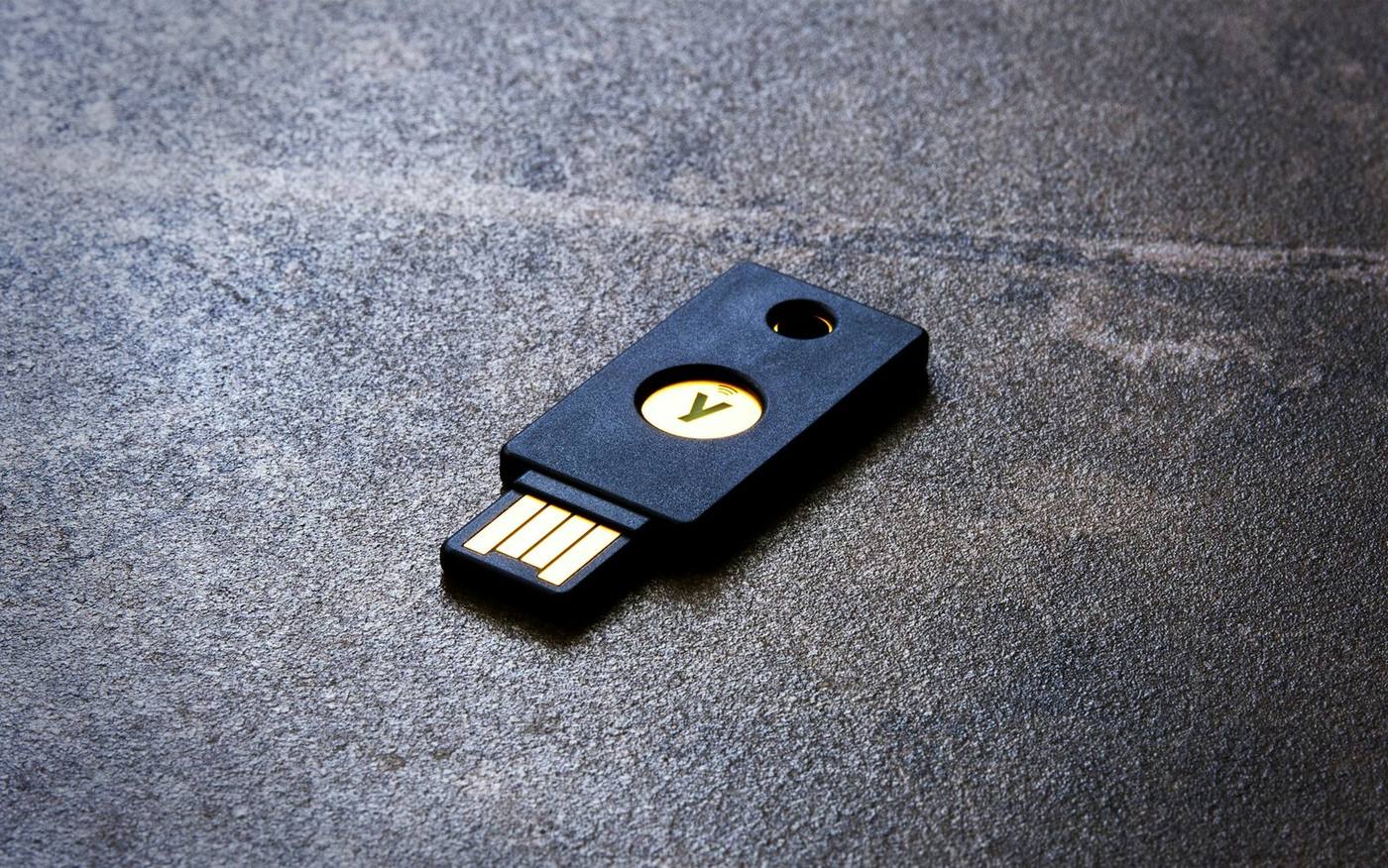
Microsoft’s current passkey configuration guidance describes device bound and synced options. Device bound credentials remain on a particular authenticator, such as a compatible security key or Microsoft Authenticator. Synced credentials can be available through a supported passkey provider across its approved devices.
The choice affects purchasing, personal device policies, recovery, and account ownership. A business issuing physical security keys needs a process for spare keys and replacements. A business permitting a synced provider needs to decide which provider accounts are acceptable and how they are secured.
Avoid letting every employee make those decisions independently. A consistent approach makes support easier and helps the business maintain control when someone changes roles or leaves. For higher privilege accounts, ask IT to recommend appropriate authenticator restrictions based on the risk.
Confirm compatibility in your own environment. Check the operating systems, browsers, mobile devices, desktop applications, and remote access tools your staff actually use. A demonstration in one browser does not prove that every important workflow is ready.
Enabling passkeys and requiring them are separate decisions
Registering a passkey does not automatically mean an employee must use it. If weaker sign-in methods remain available, employees may still be able to use them. Businesses should review which authentication methods are permitted and whether their Microsoft 365 policies actually require phishing resistant authentication for the accounts they want to protect.
Microsoft Entra, the identity service behind Microsoft 365 business accounts, supports authentication strengths in Conditional Access. These policies can require an allowed category of authentication, including phishing resistant methods. A general MFA requirement does not automatically mean phishing resistant MFA is required.
Licensing also matters. Microsoft documents passkey availability across Entra editions, while Conditional Access requires the appropriate licensing, generally Entra ID P1 or a qualifying subscription. Have IT verify what your existing subscriptions include and what any proposed enforcement needs. Do not assume that enabling a method and enforcing a custom access policy have the same licensing requirements.
Plan changes carefully. An overly broad policy can interrupt access for people who have not registered a compatible method. Review the proposed scope and test results before enforcement expands.
Prepare recovery before the first lost phone
Recovery is part of authentication security. If the help desk replaces a lost credential after a weak identity check, an attacker may target that process instead of the sign-in page.
Set a documented way to verify the employee and authorize a replacement. Where appropriate, register a second approved authenticator and keep it secure. For administrators, plan emergency access separately and test that it remains available during a policy problem.
Microsoft documents Temporary Access Pass, a limited duration credential that can help users register a stronger method or recover access. It requires suitable configuration and controlled issuance. It should never become an informal code that staff share without identity verification.
Consider a hypothetical office manager whose phone fails on payroll morning. A good recovery process identifies who verifies the request, how access is restored, and how the lost credential is removed. Rehearsing that case during the pilot is less disruptive than inventing the procedure under deadline pressure.
Use a small pilot to uncover practical problems
Choose a few employees with different work patterns, such as a manager, a remote worker, and someone who uses a specialist application. Give them clear instructions and a direct route for support.
Ask them to test a normal working day: opening Outlook, joining Teams, accessing shared files, and using other important applications. Include a device replacement or lost authenticator exercise. Record which steps work and which need adjustment.
Have IT review sign-in logs to confirm the methods used and the policy results. Registration counts alone can overstate adoption if employees continue using older options. Decide how exceptions will be approved, reviewed, and eventually closed.
Once the pilot works, expand in manageable groups. Tell employees what will change and when. Remove weaker alternatives according to the tested design, while preserving controlled recovery and emergency access. Never turn off working protections before their replacements are ready.
Keep the protection in perspective
Passkeys reduce an important category of phishing risk. They do not prevent every account compromise. An attacker may still target an unlocked device, a stolen session, a deceptive application permission request, or a vulnerable recovery process. Staff still need to report unexpected activity.
Before your next Microsoft 365 review, ask which sign-in methods your highest risk accounts actually use and what evidence shows the intended policy is enforced. Memphis Computer Support can help assess account protection as part of a broader security review. Contact MCS to discuss your current MFA methods, recovery arrangements, and a practical path toward phishing resistant sign-in.